
Schedule a Game Ahead of Time, and We'll Send the Calendar Invites
You can now set up a Nontrivial game days or weeks in advance. Everyone you invite gets a calendar invite, email reminders, and a link that lets them in when the lobby opens.
Until now, a Nontrivial game started when you created it. If you wanted trivia at Friday's team lunch, you sent the calendar invite yourself, left a note saying "link to follow," and on Friday read the join code out loud while everyone hunted for it.
Now you can set the game up ahead of time. Pick a date, choose who to invite, and Nontrivial sends them a calendar invite and reminders. The join link exists from the moment you schedule, so you can put it in a class announcement, a newsletter or a team channel days before the game.
Scheduling a game
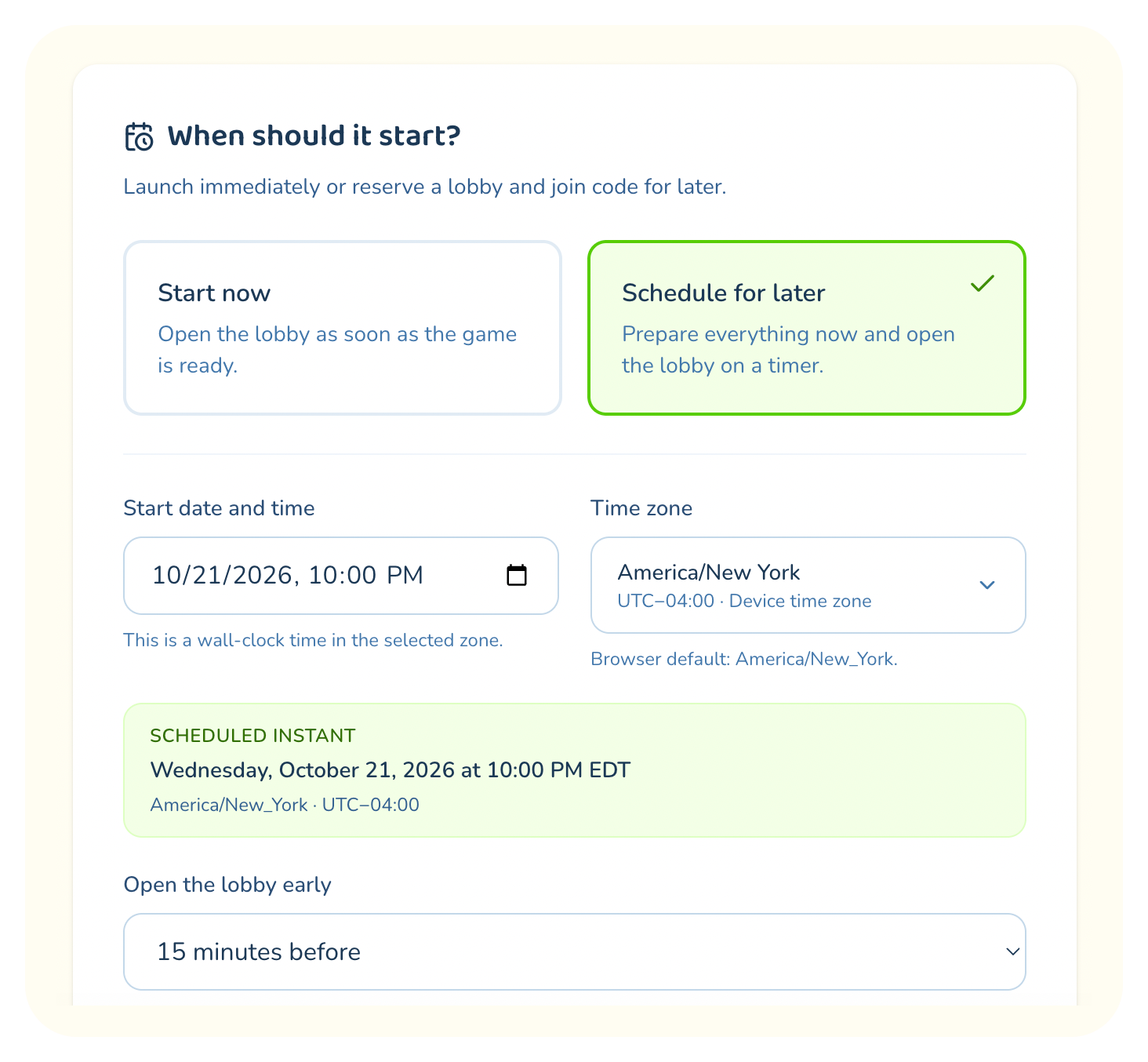
Go to Play and set up the game the way you normally would: a topic or question set, the game type, the mode. Under When should it start?, choose Schedule for later.
Then pick:
- Start date and time, and the Time zone it's in. The zone defaults to your device's.
- Open the lobby early: 5, 15, 30 or 60 minutes before the start, so people can drift in and get settled. The default is 15.
- Start automatically: on by default. Turn it off if you'd rather the lobby wait until you press Start.
- Reminders: an email a week, a day, an hour or 15 minutes before. A day and an hour are already ticked.
Questions are generated when you schedule, not at the last minute, so there's nothing left to wait on when the game begins.
Press Schedule Game. You'll see the start time, a link to share, the join code, and an Add to calendar button for your own calendar.
Inviting people
You can invite people three ways, in any combination:
- Type in email addresses, up to 50 at a time.
- Pick one of your groups.
- Tick Notify my followers.
Groups and followers are checked again each time an email goes out, so someone who joins the group after you schedule still hears about the game.
Each person gets an email with a calendar invite attached. It lands in Google Calendar, Outlook or Apple Calendar like any meeting invite, at the right time in their own time zone, with the join link as the location. On the day, they can open the game straight from the calendar entry.
Reminders go out at the times you picked. When the lobby opens, everyone gets one last email saying the game is open, with a Join Game button.
Sending invites by email needs a Premium or Pro plan, or a work or school email address. On a free plan with a personal address (Gmail, Outlook and the like), you can still schedule the game and share the link yourself.
If someone shows up early
The link works the whole time, but nobody can join until the lobby opens. Anyone who opens it before then sees a countdown to the lobby opening, the start time in their own time zone, and an Add to calendar button. If they leave the page open, it takes them in as soon as the lobby opens.
Changing the plan
Your scheduled games are under Scheduled in the navigation, split into Upcoming and Past. Each one shows its status, start time, who's invited and, once the lobby is open, how many people have joined.
Edit lets you change the time, the time zone, the reminders, the invite list and a few game settings, such as time per question. The topic and the questions stay fixed, so if you want different questions, schedule a new game. You can edit up until the lobby opens.
When you move the start time, everyone gets an updated invite and the event moves on their calendar. They don't end up with two entries. People you take off the list get a cancellation, so it disappears from their calendar. For any other change, tick Notify everyone about these changes if you want people to hear about it.
If you're ready before the lobby is due to open, Open lobby early lets people in straight away. The start time doesn't change.
To call the game off, press Cancel game. Everyone you invited gets a cancellation, the event comes off their calendar, and the link stops working.
What happens at start time
With Start automatically on, the game starts on time whether or not you're there. That's handy for a quiz you want running while you're stuck in another meeting, or a class where students join from home.
With it off, the lobby waits for you. If nobody starts the game within two hours of the scheduled time, Nontrivial cancels it, lets you know, and sends everyone a cancellation, so a forgotten game doesn't leave people waiting in an empty lobby.
Ways to use it
- Teaching. On Monday, schedule Friday's review quiz for your class group. The reminders do the nagging for you.
- Work. Put the monthly team trivia on everyone's calendar weeks ahead, like any other meeting, and let it start itself.
- Trivia nights. Post the link on your venue's page a week out. Regulars add it to their calendars, and the lobby opens half an hour before the first round.
- Events and workshops. Schedule a poll game for the end of a session and paste the link into the agenda you send beforehand.
Details
- You can schedule a game anywhere from a minute to a year ahead.
- Each scheduled game happens once. There's no repeat option yet.
- You can have up to 50 upcoming scheduled games at a time.
- Scheduling is on the web at nontrivial.app for now. Players can join from any device, as always.
- TV casting isn't available for scheduled games.
- The calendar entry holds 30 minutes. Your game can run longer.
- Every email has an unsubscribe link. People who unsubscribe can still join with the game link.
To try it, go to Play and choose Schedule for later.